



What is a Shell in Linux: Features, Types and Differences

A Linux shell sits between you and the kernel. You type something. It figures out what you meant. The kernel does the actual work. Boring on paper. Less boring at 2 a.m. when a deploy script that ran fine on RHEL last week is mysteriously broken on Ubuntu now. That's where the question of what is a shell in Linux stops being academic and starts costing sleep.
Here's the thing nobody mentions clearly enough. The word "shell" gets thrown around for two pretty different jobs. One is the interactive thing you live in over SSH - your prompt, tab completion, history. The other is whatever runs your scripts at boot, or via cron, or inside a systemd unit. They don't have to be the same program. On Debian and Ubuntu they aren't, and that catches people. The honest answer to what is shell in Linux really depends on which of those roles you mean. Most of the surprises live in the gap between them.
If you do this for a living - sysadmin, DevOps, whatever the title is this year - the choice has consequences you'll feel personally. Got #!/bin/sh at the top of a script on Ubuntu? Welcome to Dash. Not Bash. So that nice [[ ]] test, the array you built, the process substitution? Toast. Sometimes the script crashes loud. Sometimes it just does the wrong thing and walks away.
This shell Linux guide is mostly about that second case. We'll get into how shells process commands, where the major Linux shell types diverge in ways that matter on a server, the scripting and security stuff that's worth knowing before you need it, and a straight answer when someone asks which shell to use for what.
AI Summary
A shell in Linux reads what you type, parses it, and asks the kernel to do whatever you actually meant - open a file, fork a process, send some bytes over the wire. People bundle two different categories together and call them shells. There are CLI shells (Bash, Zsh, Fish, Dash, sh, Ksh, the Csh family) and there are graphical environments like GNOME Shell or KDE Plasma. The graphical ones manage windows. The CLI ones run commands. Server work happens in the second group. Bash is what you'll get by default on most server distros. On Debian and Ubuntu, /bin/sh is Dash though - a smaller, faster shell that the system uses for scripts because it shaves real time off boot.
Key facts at a glance:
- Bash is the default user shell on most Linux server distributions.
- Dash starts roughly 4× faster than Bash and runs as /bin/sh on Debian and Ubuntu (Arch Wiki).
- /etc/shells is the list of shells the system permits as login shells.
- echo $SHELL returns your default login shell. echo $0 or ps -p $$ show what's actually running right now.
- POSIX compliance is the line between "this script travels" and "this script doesn't."
- Zsh has been the macOS default since Catalina (10.15).
- Fish is the only mainstream shell that gives you autosuggestions and syntax highlighting without any setup.
- rbash is Bash with the brakes on, for accounts that shouldn't roam.
What Is a Shell in Linux?
A shell in Linux is what turns text input into something the kernel can actually act on. It sits between user space - the place where commands like ls and grep live as regular programs - and kernel space, which is where the privileged stuff happens. Reading files. Spawning processes. Talking to the network card. No shell, no way in. You'd have a kernel and no door to knock on.
Every modern shell does pretty much the same dance when you press Enter:
- Read - the shell pulls a line from your terminal or whatever script it's running.
- Tokenize and parse - that line gets chopped into words, operators (|, >, &), and reserved keywords.
- Expand - anything that needs replacing gets replaced. Variables ($HOME), globs (*.log), command substitutions ($(date)).
- Resolve - the shell hunts through $PATH for the binary, or notices it's a built-in and skips the search.
- Execute - fork() makes a child process. execve() loads the program inside it.
- Wait and report - parent shell hangs around until the child exits, grabs the exit code ($?), gives you back the prompt.
The user-space versus kernel-space line is where shell choice actually starts to bite. The shell is the orchestrator. It parses, expands, redirects, decides what to call. The kernel does the privileged work that no regular program is allowed to do directly. Swap shells and you swap parsing rules and expansion behavior. The kernel's behavior doesn't change at all. If you ever need the rules in obsessive detail, the GNU Bash Reference Manual is the reference everyone falls back to.
Key Features of a Linux Shell
Every modern shell hands you the same toolkit. Same primitives, mostly the same patterns. What changes is how often you actually use them. On a laptop maybe you tab-complete a path now and then. On a server you live in pipelines. You'll grep through two days of logs at 3 a.m. trying to find the exact 502 spike that triggered the alert. That's not theoretical - that's most of what server work even is.
| Feature / Component | What It Does | Practical Server Example |
|---|---|---|
| Command history | Stores executed commands in ~/.bash_history for recall and audit. | Forensic review of an admin session via history after an incident. |
| Tab completion | Completes commands, paths, and arguments on Tab. | Faster navigation across long paths under /var/lib/postgresql/. |
| Piping (|) | Sends one process's stdout to the next process's stdin. | journalctl -u nginx | grep 502 | awk '{print $1}' for log triage. |
| I/O redirection (>, >>, <, 2>&1) | Redirects standard streams to or from files and descriptors. | ./backup.sh > /var/log/backup.log 2>&1 to capture all output. |
| Environment variables | Configures process behavior without changing code. | DATABASE_URL=... injected by systemd into a unit file. |
| Shell scripting | Executes sequenced commands from a file. | /etc/cron.daily/logrotate rotating logs every night. |
| Job control (&, fg, bg, jobs) | Backgrounds, foregrounds, and lists processes. | Long-running rsync mirror started with & during a maintenance window. |
| Aliases | Custom short names for frequent commands. | alias dc='docker compose' for repetitive container ops. |
| Prompt | Configurable PS1 displaying user, host, path, and exit status. | Color-coded host prefix to prevent rm -rf on the wrong server. |
| Shell built-ins | Internal commands (cd, export, read, set) executed without fork(). | set -euo pipefail for strict-mode scripts that fail loudly. |
Pipes and redirection are the part you genuinely never stop using. Every monitoring pipeline. Every log triage script. Every "wait, why did Postgres restart at 4 a.m." investigation. They all reduce to chains of pipes and a few redirects. Something like journalctl --since "1 hour ago" | grep -i error | sort | uniq -c | sort -rn looks throwaway. It isn't. That's the kind of pattern you'll reuse for years across totally unrelated incidents. It works because the shell composes small single-purpose programs into something larger than any of them - Unix philosophy holding up surprisingly well decades in.
Types of Shells in Linux
The shell landscape splits into two broad categories that people mix up constantly. CLI shells are what this guide is actually about - Bash, Zsh, Fish, Dash, Ksh, the Csh family. They interpret commands, run scripts, manage jobs. Graphical shells like GNOME Shell or KDE Plasma manage the desktop environment. Server infrastructure runs on the CLI kind, full stop.
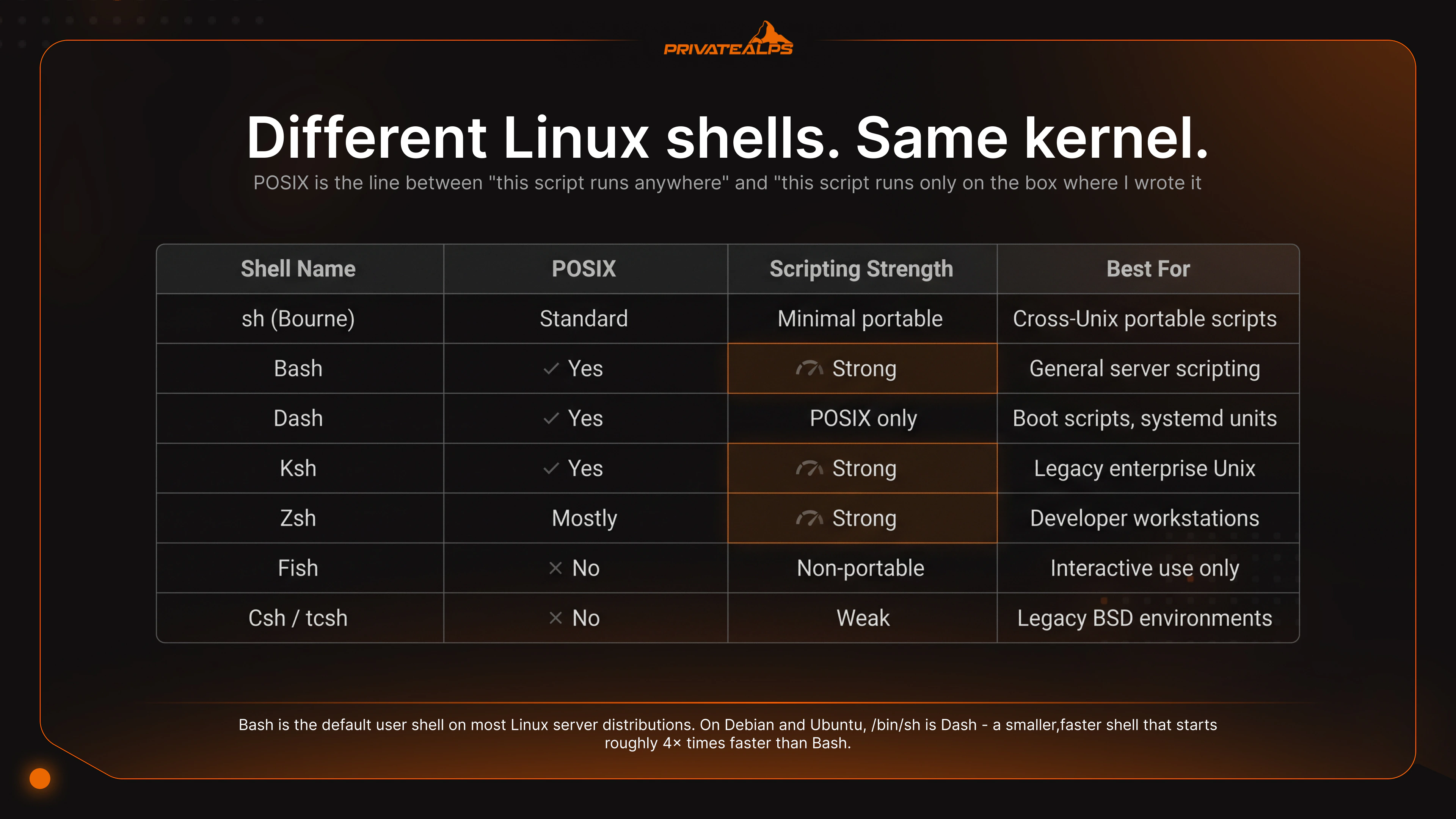
| Shell | Origin | POSIX Compliant | Interactive Strengths | Scripting Fit | Default On |
|---|---|---|---|---|---|
| Bash | GNU, 1989 | Mostly (extensions break strict POSIX) | History, readline, arrays | General-purpose server scripts | RHEL, Fedora, Debian (login), Ubuntu (login) |
| Dash | Debian, 1997 | Yes | Minimal | POSIX-only boot and init scripts | Debian/Ubuntu as /bin/sh |
| Zsh | Paul Falstad, 1990 | Mostly | Advanced completion, themes, plugins | Good but rarely used for portability | macOS (since Catalina) |
| Fish | 2005 | No | Autosuggestions, syntax highlighting, web UI config | Fish-only scripts, not portable | None by default |
| Ksh | AT&T Bell Labs, 1983 | Yes | Reasonable | AIX/HP-UX legacy scripts | Some enterprise Unix |
| Csh/Tcsh | BSD, 1978 | No | C-like syntax | Avoid for scripting | Some BSD defaults |
| rbash | GNU | N/A | Restricted subset of Bash | Security-constrained accounts | Not a default; manually configured |
Bash is the practical default for server work. It's installed everywhere, well-documented, and the community has written working examples for basically every common automation task. Arrays, [[ ]] conditionals, process substitution, here-strings - you get all of it. The trap to remember: on Debian and Ubuntu, /bin/sh is not Bash. It's Dash. Write #!/bin/bash when you mean Bash. Do not assume /bin/sh is Bash on any Debian-family system.
Dash is what /bin/sh points to on Debian and Ubuntu. Minimal, fast, POSIX-strict. Startup is roughly 4× faster than Bash, which matters in initrd and systemd environments where the shell is forked dozens of times during boot. The cost is everything Bash-specific: no arrays, no [[ ]], no process substitution. Scripts written for Dash have to stay within POSIX boundaries or they break.
Zsh is the macOS default since Catalina and a common choice for developers who spend most of their time at an interactive prompt. Plugin frameworks like Oh My Zsh pile on Git status, custom themes, extended completions. On a server it's a reasonable login shell choice. As a scripting language for automation, nobody deploys it - portability and tooling support both favor Bash.
Fish is the outlier. Autosuggestions and syntax highlighting work out of the box, no configuration. The interactive experience is genuinely better than anything else in the list for a developer workstation. The catch is intentional: Fish is not POSIX. Scripts written for Fish don't run in Bash, and they can't. Use Fish as a personal login shell if you like the UX - but keep your actual automation in Bash or POSIX sh. Fish syntax should never show up in production scripts.
Ksh has its place in shops still running AIX or HP-UX, or maintaining scripts written 20 years ago for enterprise Unix. ksh88 and ksh93 syntax is what those scripts expect. Using anything else means rewriting them. If you're not maintaining legacy enterprise Unix scripts, Ksh is not the right starting point.
rbash is Bash with specific capabilities disabled: changing PATH, using redirection, running commands with / in the path, modifying readonly variables. Useful for service accounts or restricted multi-tenant logins that should only run one or two specific commands. Not a real security boundary on its own - there are well-known escapes through awk, vim, and other tools that allow shell execution. Combine with chroot or container isolation if the restriction needs to actually hold.
Shell Scripting on Servers: What Actually Matters
Shell scripts on servers aren't demo code. They run cron jobs nobody checks unless something breaks. They're inside systemd units that fire at boot. They're the last thing standing between a deploy and a rollback. The habits that separate scripts that survive production from ones that cause incidents are pretty short, and most of them come down to one thing: fail loud instead of silently.
Shebangs are not optional. The first line of every script should be explicit about what interpreter runs it. #!/bin/bash for Bash scripts. #!/bin/sh for POSIX-only scripts that should run under Dash. Leaving the shebang off means the behavior depends on which shell executes the file - and that's different across distros, cron implementations, and systemd configurations. The same script can work fine in one environment and silently do the wrong thing in another.
Strict mode is the baseline. set -euo pipefail at the top of every Bash script you write for production. -e exits on any non-zero return code. -u treats unset variables as errors. -o pipefail makes pipe failures propagate instead of getting swallowed by the rightmost command. Three flags. Most of the obvious footguns go away.
ShellCheck before deployment. ShellCheck is a static analyzer for shell scripts. It catches quoting bugs, unintended word splitting, deprecated syntax, and a long list of patterns that look right but aren't. Running it on a script takes seconds. Finding the same bug in production after it's caused data loss takes considerably longer.
Quote variable expansions. "$var" not $var. Unquoted variables undergo word splitting and glob expansion - both of which produce surprising results when the variable contains spaces, wildcards, or is empty. The rule is simple: always double-quote variable references unless you specifically need the expansion behavior.
Avoid eval. eval executes a string as shell code. If any part of that string comes from user input, an environment variable, or a file you don't fully control, you've opened a code injection path. The use cases that actually require eval are narrow. Most uses of it in production scripts are pattern-matching bugs in disguise.
Shell Security: The Layer People Skip
Security at the shell layer doesn't get the same attention as firewall rules or patching cycles. It should. The shell is where most administrative access happens, and where most mistakes that matter actually occur.
Login shells and /etc/shells. Any shell set as a user's login shell must be listed in /etc/shells. This is enforced by PAM and relevant to su, sudo, and SSH. If a shell isn't in that file, certain authentication paths refuse to allow it as a login shell. Check /etc/shells before setting any unusual shell for an account that needs to authenticate via SSH or sudo.
SSH and shell restriction. AllowUsers and AllowGroups in sshd_config limit which accounts can authenticate via SSH at all. Combine that with ForceCommand to restrict what an account can actually run after authentication. A service account that should only run one specific command doesn't need a general-purpose interactive shell - ForceCommand makes that explicit in the SSH daemon configuration.
auditd for command-level logging. The shell logs commands to ~/.bash_history, which is user-controlled and easy to clear. auditd logs execve syscalls at the kernel level - every exec call, who made it, what arguments were passed. For compliance environments (PCI DSS, HIPAA) or any infrastructure where post-incident forensics matter, auditd provides the audit trail that shell history deliberately can't.
Recommended hardening checklist:
- Restrict SSH access with AllowUsers or AllowGroups in sshd_config.
- Configure auditd to log execve syscalls for command-level audit trails.
- Run shellcheck on every script before deployment.
- Quote all variable expansions: "$var", never bare $var.
- Avoid eval and unsanitized user input in scripts entirely.
- Log script output to a known location with exec >> /var/log/script.log 2>&1.
Choosing the Right Shell for Your Use Case
There's no universally correct shell. There's a shell that fits the job. Scripts versus interactive sessions. Portability versus features. One server versus a fleet. All different answers. Bash is the safe default for most server scripting. Dash is what you want when boot speed actually shows up on the radar. POSIX sh is for scripts that have to survive a move to BSD or macOS down the line. The mistake most teams make isn't picking the wrong shell - it's mixing them across environments via inconsistent shebangs and discovering the inconsistency in production at the worst possible time.
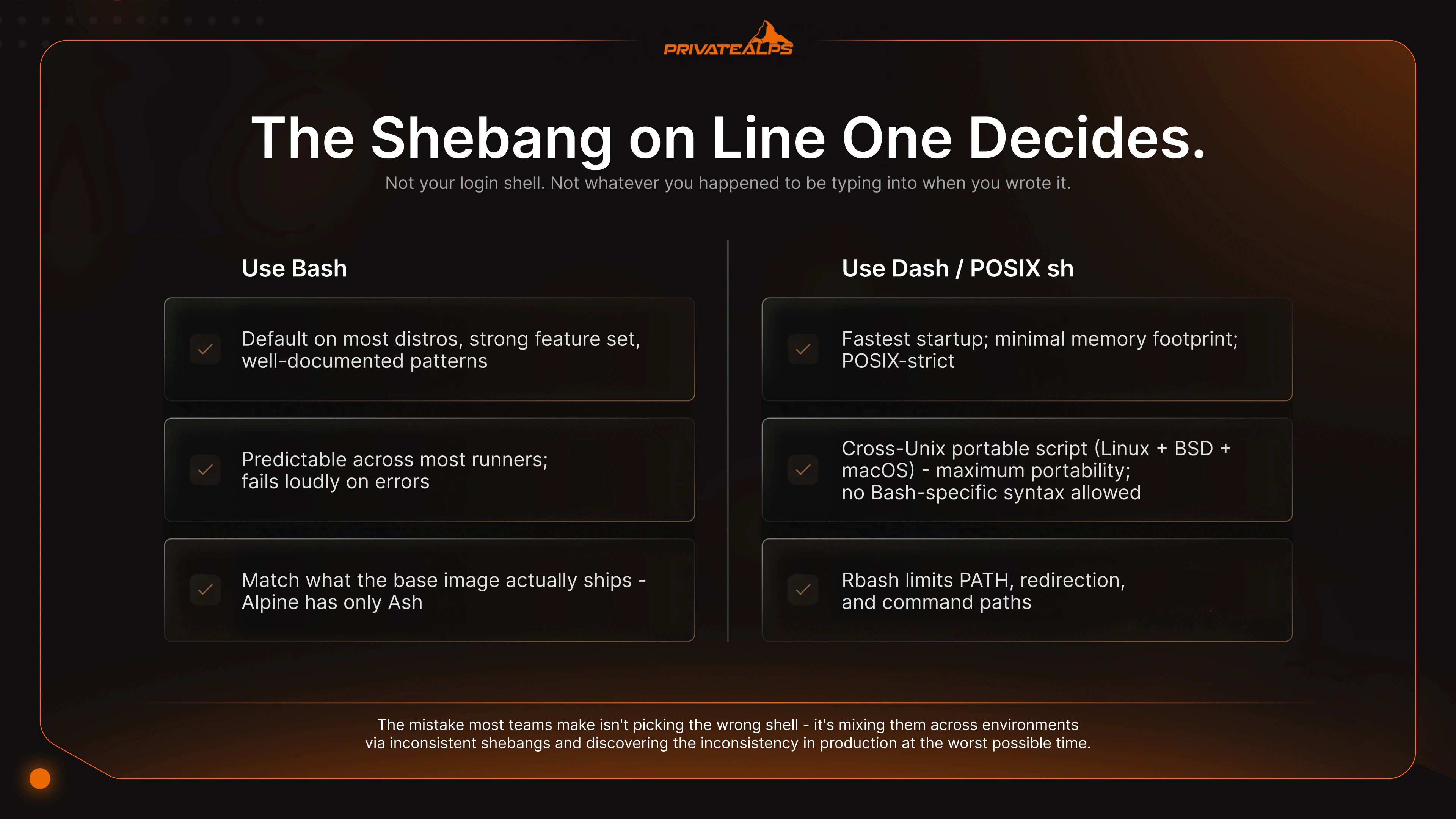
| Scenario | Recommended Shell | Reason |
|---|---|---|
| General server automation (cron, deploy hooks) | Bash | Default on most distros, strong feature set, well-documented patterns. |
| Boot scripts, systemd ExecStartPre, init wrappers | Dash (/bin/sh) | Fastest startup; minimal memory footprint; POSIX-strict. |
| Cross-Unix portable script (Linux + BSD + macOS) | POSIX sh | Maximum portability; no Bash-specific syntax allowed. |
| Developer workstation, daily interactive use | Zsh or Fish | Better autocomplete, syntax highlighting, history search. |
| Migrating legacy enterprise scripts (AIX, HP-UX) | Ksh | Native compatibility with ksh88/ksh93 source. |
| Restricted-access user account | rbash | Limits PATH, redirection, and command paths; combine with chroot. |
| CI/CD pipeline scripts | Bash with set -euo pipefail | Predictable across most runners; fails loudly on errors. |
| Container ENTRYPOINT scripts | Bash or sh (image-dependent) | Match what the base image actually ships - Alpine has only Ash. |
The default shell on any given server isn't actually an accident, even when it feels like one. On Ubuntu and Debian the login shell is Bash, but /bin/sh is Dash - meaning the same line of code can do completely different things depending on which interpreter you actually invoked. RHEL, Fedora, and CentOS resolve both /bin/sh and the login shell to Bash, with sh running in POSIX mode. Alpine containers ship Ash and only Ash - so a Bash script in an Alpine image dies the moment it hits an array. The portable rule is short. Spell out the shebang every time. Don't assume /bin/sh is Bash. Run ShellCheck before anything reaches a server you actually care about.
Summary
The Linux shell sits between you and the kernel. Pick the wrong one and your scripts go fragile, your boot times start creeping up, your security posture drifts in ways nobody flags until something breaks. Among the available types of shell in Linux, Bash is the right default for general server scripting. Dash is what /bin/sh should point to on Debian-family systems where boot speed matters. POSIX sh is the safe bet when a script needs to run somewhere you don't fully control. And it's the shebang on line one that decides which interpreter actually runs - not your login shell, not whatever you happened to be typing into when you wrote it. Get that part wrong and you'll spend a Saturday afternoon debugging a script that worked just fine the day before.
If you want full control of the shell layer - root access, swap shells without restrictions, run chsh however you want, configure auditd the way you actually need it, tune kernel parameters - that's where a Linux VPS with bare-metal-grade control earns its keep. PrivateAlps gives you that, hosted in Switzerland under revDSG, which matters quite a bit if you care where your data physically lives privatealps.net.
FAQ
What is a shell in Linux?
A shell in Linux is the program that takes what you type and turns it into something the kernel can act on. It sits between user space and kernel space. You talk to the shell, the shell talks to the kernel. Without one there's no way to drive the operating system from text input - you'd have a kernel and no real way to ask it for anything.
What are the different types of shells in Linux?
The CLI shells you'll actually meet are Bash, Dash, Zsh, Fish, Ksh, and the Csh family. Among the different types of shell available, the POSIX-compliant ones - Bash, Dash, Ksh, sh - work for portable scripts. Fish and Csh don't. The same lineup also covers the historical types of shell in Unix, since Bash, Ksh, and the Csh family all came from Unix systems originally before they showed up on Linux. GNOME Shell and KDE Plasma get called shells too, but they're really a different category - more about windows and login sessions than running commands.
What is the difference between sh and Bash?
sh is the POSIX standard. Minimal feature set, focused on portability above everything else. Bash is a superset that adds arrays, [[ ]], process substitution, readline editing - useful stuff. Here's the trap that catches people though: on Debian and Ubuntu, /bin/sh is a symlink to Dash. So if you write a script with #!/bin/sh and use anything Bash-only, it runs in Dash and breaks. Even with bash installed and right there on the box, the shebang is what decides.
Which shell is best for Linux server scripting?
Bash for general automation. It's everywhere, and there's a working example for almost anything you might want to do. Dash (/bin/sh) for boot scripts and systemd unit helpers, where startup speed actually shows up in measurements. The thing to actively avoid is mixing Bash syntax with #!/bin/sh on Debian-family distros - that's the script that runs fine on one box and silently does the wrong thing on the next.
How do I check which shell I am using in Linux?
echo $SHELL shows your default login shell from /etc/passwd. echo $0 or ps -p $$ show what's actually running this exact second. They can disagree - for instance if you're in a Bash session you started by hand inside a Zsh login. To see what's even installed and allowed as a login shell on the system, look at /etc/shells.
What is the difference between a shell and a terminal?
The terminal - gnome-terminal, iTerm2, xterm, Alacritty, whatever you use - is the application drawing the window and handling your keyboard and screen. The shell is the program running inside it that interprets the commands you type. Terminal does I/O. Shell does logic. The same Bash process behaves identically whether it's running in plain xterm or in some fancy terminal with custom fonts and ligatures.
Is Fish shell suitable for production servers?
Fish is great interactively. It's also intentionally non-POSIX, which means scripts written in Fish don't travel - you can't drop them into a Bash environment and expect anything good to happen. So as a personal login shell on a server, sure, fine, if you like the UX. But your actual automation needs to live in Bash or POSIX sh. Don't let Fish syntax leak into scripts that other people or other systems will eventually run.
What is a restricted shell (rbash) and when should you use it?
rbash is Bash with the brakes on. The user can't change PATH. Can't redirect output. Can't run anything with / in the path. Can't modify variables marked readonly. Useful for limited-access user accounts on multi-tenant servers, or for technical service users with one specific job to do. Worth saying clearly though - rbash on its own isn't really a security boundary. People escape it via vim, awk, or other built-in tools that allow shell-out. Pair it with chroot or container isolation if you actually want to keep someone in.